


Tattoo Maker
3.727.00 Reviews
App Specs
- Version
- Version 1.0.5
- Updated On
- License
- Free
- Downloads
- 10,000+
- Developer
- HOTSALES GLOBAL TRADE LLC
- Categories
- Art & Design
- Platform
- Android
Screenshots
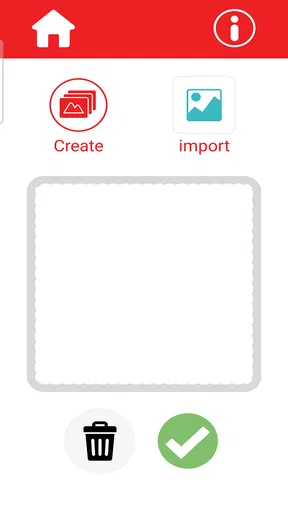
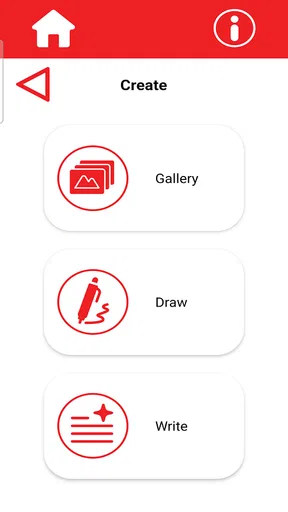
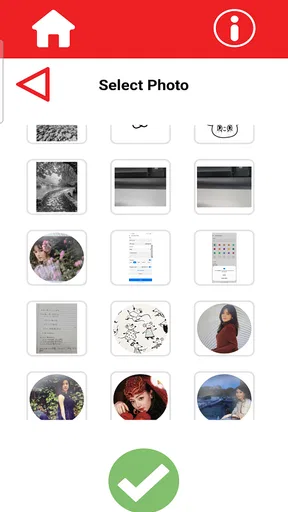
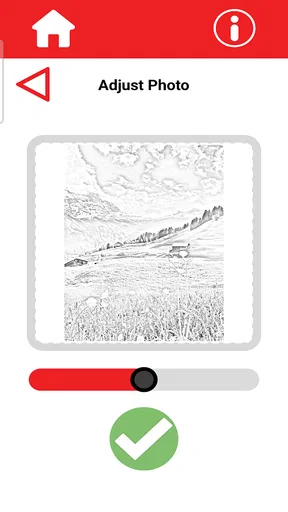
 Analysis by AppCompare
I approached Tattoo Maker as a practical art and design tool rather than as a replacement for a professional tattoo artist. Its central idea is simple: create a tattoo design on a phone or tablet, then prepare it for printing at home. That makes it appealing for testing an idea, sharing a concept with a tattoo artist, or making a temporary design for an event. In my experience, the app is most useful when I treat it as a quick visual workspace, not as a complete tattoo-production studio.
The app is free, aimed at Everyone, and comes from HOTSALES GLOBAL TRADE LLC. It belongs to the art and design category, where ease of navigation matters just as much as creative tools. With an average rating of 3.7 from around fifty ratings, it has attracted early interest without yet feeling like a mature, universally polished product. It was released on August 29, 2025, and the current version is 1.0.5, so I would approach it as a young app that may still be developing its workflow.
How Tattoo Maker feels to use in real situations
I find the most useful way to judge Tattoo Maker is to focus on the step it adds between imagining a tattoo and seeing a draft on paper. In the next section, I’ll look at how that print-oriented workflow can help with decisions such as scale and placement, and where a quick home print still needs careful checking.
Readability and navigation come before artistic ambition
The first thing I look for in an art app is whether I can understand the workspace without constantly guessing what each control does. A tattoo editor has a particularly important challenge: the design itself should remain the focus. If buttons, menus, or editing controls compete with the canvas, even a simple sketch can become tiring to manage.
Tattoo Maker makes the most sense for short, focused sessions. I would open it with a clear goal, such as building a small symbol, arranging lettering, or experimenting with the placement of an image. That approach is more comfortable than trying to complete a highly detailed sleeve concept in one sitting. The app’s value is in turning an idea into something visible quickly, especially when the alternative is drawing on paper and photographing the result.
For a first-time user, I recommend beginning with a deliberately small project. Create one design, inspect how the editing area behaves, and only then attempt a more complicated composition. This is not just a beginner-friendly habit; it also reduces the chance of losing track of a design when several elements overlap. A clean, limited canvas makes it easier to judge whether the tattoo would still look recognizable at a smaller size.
Readability also depends on the device. A phone is convenient for spontaneous ideas, but a larger tablet gives the artwork more breathing room and can make small controls easier to distinguish. Someone with reduced vision may find a tablet more comfortable simply because the design and interface are not competing for the same limited space. I would not assume that enlarging the system text will enlarge every part of the editor, so testing the app on the intended device is worthwhile before committing to a long project.
Worth Reading Before You Choose

Flipboard Shows What News Apps Must Do Beyond the Feed

Switching to Android Auto Means Rethinking Your Driving Routine

Google Calendar Makes a Crowded Week Easier to Manage

Ludo King Makes the Most of the Minutes Between Plans

Baby Panda World Brings Quick Play to Modern Phones, but Its Game Library Feels Busy

ESPN’s Live Game View Makes Following Close Games Easier
One useful workflow is to keep the first draft visually simple and use contrast intentionally. A bold outline and uncluttered interior are easier to inspect than a design filled with tiny marks. This also reflects how tattoos behave in real life: details that look attractive on a bright screen may become difficult to read when printed small or viewed from a distance.
Motor control and sensory comfort
Designing with touch can be enjoyable, but it also introduces physical demands. Dragging, tapping accurately, resizing, and placing elements all require a degree of fine motor control. For users with tremors, limited reach, joint pain, or fatigue, a phone-sized canvas may make precision work frustrating. In that situation, I would use a larger screen, work in brief sessions, and save or export drafts frequently when the workflow allows it.
A stylus-compatible device could make drawing feel more controlled, but I would regard that as a device-dependent advantage rather than a guaranteed feature of the app. The important point is to avoid assuming that touch editing will suit everyone equally. Someone who prefers a mouse, keyboard, or other alternative input method may find a conventional desktop graphics program more comfortable.
There is also a sensory side to the experience. A tattoo design often contains high-contrast lines, and repeatedly examining a bright screen can be uncomfortable for people sensitive to glare or visual intensity. Lowering the device brightness, using a comfortable room light, and taking regular breaks can make the process less tiring. These are simple adjustments, but they matter when an app encourages close inspection of small artwork.
For users who process information more comfortably through a predictable sequence, I suggest separating the task into stages: rough idea, placement, cleanup, and print preparation. Trying to make artistic decisions while also learning every control at once creates unnecessary cognitive load. I found that treating the app as a series of small decisions makes it easier to notice mistakes and less stressful to revise a design.
One non-obvious consideration is that tattoo design is not only about appearance on the screen. If a user has difficulty distinguishing subtle shades, an image that relies on delicate color differences may not be easy to evaluate. A design built around clear shapes and strong tonal separation is more inclusive during editing and more dependable when shown to another person. That is especially helpful when the design will be reviewed by someone else before it is used.
Where the app fits into everyday life
A realistic use case is planning a design before visiting a tattoo artist. Imagine having a rough idea for a small botanical symbol but not knowing whether it should sit on the wrist, shoulder, or ankle. I would use the app to create a few variations, print them at home, and place the paper versions against clothing or in front of a mirror. This does not replace professional advice, but it turns a vague idea into something easier to discuss.
The print-at-home angle is also useful for temporary tattoos, costume preparation, parties, or testing whether a particular symbol feels comfortable in a visible location. The app can serve as a bridge between digital creativity and a physical result. That is more practical than an editor that keeps every design trapped inside the phone.
Before printing, I would check the physical size carefully. A design that looks balanced on a screen can become too small once transferred to paper, while thin lines may become less convincing when printed by an ordinary home printer. I would make a test print on inexpensive paper first, measure it, and inspect it under normal lighting. This simple step prevents the common mistake of judging a tattoo only by its on-screen appearance.
Another useful workflow is creating variations rather than endlessly editing one draft. Make one version with heavier lines, another with less detail, and a third with a different arrangement. Comparing separate options is often easier than trying to remember what changed between revisions. It also gives a tattoo artist clearer material to react to, while leaving room for professional adjustment.
For families, the Everyone content rating makes the app approachable as a general creative tool. That does not mean every tattoo idea is suitable for every age or situation, but it does make the app less intimidating for casual design practice. A parent and child could use it to create imaginary symbols or temporary designs, with an adult handling printing and discussing what permanent tattooing involves.
What it does well compared with usual alternatives
The usual alternatives fall into two groups: drawing on paper or using a full graphics editor. Paper is immediate and tactile, and many people will find it easier for rough sketches. However, paper makes it harder to duplicate a design, test several placements, or prepare a clean version for printing. Tattoo Maker is more convenient when I want to try variations without starting from scratch each time.
A full graphics application can offer deeper control, but that power often comes with a steeper learning curve and a busier interface. For a person who only wants to create a tattoo concept, a specialized mobile app can feel less overwhelming. The trade-off is that a focused tattoo tool may not satisfy an illustrator who needs advanced layer management, detailed retouching, complex typography, or professional prepress controls.
The most sensible comparison is therefore not “which app is best for all art?” but “which tool matches the job?” Tattoo Maker is a reasonable choice for quick concepts, simple compositions, and home-print experiments. Paper may be better for expressive freehand drawing. A desktop graphics program may be better for precise professional preparation. A tattoo artist’s own design process remains the better option when anatomy, skin movement, longevity, and technical tattoo execution are central concerns.
Remaining barriers and points of friction
The biggest limitation is the gap between making a design and making a tattoo. A screen can show an attractive image, but it cannot tell me whether the design will age well, follow the body’s contours, or remain legible after healing. Anyone planning permanent ink should bring the result to a qualified tattoo professional and expect the design to change.
Printing at home introduces another layer of uncertainty. Paper type, printer quality, scaling, and alignment can all affect the physical result. I would never treat a successful preview as proof that the final printed design is ready for transfer. The safest approach is to use the printout as a visual reference and verify the final size and orientation before anything is applied.
There is also a learning barrier for people who expect instant professional output. The short store description, “Tattoo Maker,” sounds direct, but creating a strong tattoo still requires judgment. The app can help organize an idea; it cannot supply personal meaning, good composition, or an understanding of how a design should adapt to a body. Users who want automatic, finished artwork may be disappointed by the amount of creative decision-making still required.
Because the app is relatively new and currently at version 1.0.5, I would keep expectations measured. Early releases can feel less refined than established creative suites, and a user who depends on a highly predictable professional workflow may prefer a tool with a longer development history. That does not make this app unsuitable, but it does make it more appropriate for experimentation than for a deadline-critical production job.
People who need strong accessibility customization should also test the complete workflow personally. I would pay attention to text size, button spacing, contrast, touch accuracy, and whether important actions are easy to locate without relying on visual memory. If any of those steps become tiring, a larger device or a different editor may be the better choice. Inclusive design is not only about whether an app opens; it is about whether someone can complete the whole task independently and comfortably.
Who should try it, and who should skip it
I would recommend Tattoo Maker to someone who wants a straightforward way to explore tattoo ideas, make temporary designs, or prepare a rough concept before speaking with a professional. It is particularly suitable for users who prefer working visually on a mobile device and do not want to learn a large, general-purpose graphics suite just to produce one symbol or small composition.
It may also suit a person who benefits from seeing several physical options before deciding. Printing variations and comparing them in the intended setting can reveal problems that are easy to miss on a screen. For example, a design may look attractive in isolation but feel too busy beside a watch, clothing, or an existing tattoo.
I would skip it if the main goal is professional tattoo production, complex illustration, or exact print preparation. In those cases, a more advanced graphics tool, a desktop workflow, or direct collaboration with a tattoo artist will provide better control. I would also choose another option if touch interaction is uncomfortable or if the app’s controls are difficult to read on the available device.
My inclusive verdict
After using it as a compact design workspace, I see Tattoo Maker as a useful starting point rather than a complete solution. Its strongest quality is the short path from an idea on a phone to a design that can be inspected, discussed, and printed. That makes it more practical than a purely inspirational gallery and less demanding than a full illustration suite.
Its accessibility depends heavily on context: screen size, touch control, visual comfort, and the user’s tolerance for experimenting. I appreciate that the concept can support different situations, from casual temporary art to planning a conversation with a tattoo artist, but I would not describe it as universally effortless. The best results come from simplifying the first draft, checking printed size, and allowing time for revisions.
My recommendation is to try it when you want an approachable way to turn a tattoo idea into a physical reference, while keeping professional review in the process. The free price lowers the barrier to experimentation, and the Everyone rating makes it easy to approach as a general creative app. Just remember that the app creates the proposal; it does not make the artistic, physical, or accessibility decisions for you.
Pros
- Simple tools make it easy to create tattoo designs quickly.
- Offers a wide variety of tattoo templates and decorative elements.
- Useful for previewing how a design may look on different body areas.
- Supports creative experimentation without permanent commitment.
- Suitable for casual users who have no design experience.
Cons
- Some designs and features may require in-app purchases.
- The editing tools can feel limited for detailed professional artwork.
- Results may look less realistic than those from specialized mockup apps.
- Ads can interrupt the design process in the free version.
- Export options may not provide the quality needed for printing.
FAQs for Tattoo Maker
What is Tattoo Maker and what can I do with it?
Tattoo Maker is a creative design app that lets you experiment with tattoo ideas directly on your phone. You can usually choose from different tattoo styles, place artwork on a virtual body area, adjust its size and position, and preview how the design may look on skin. It is useful for inspiration, planning, and sharing concepts, but it should not replace advice from a professional tattoo artist.
Is Tattoo Maker suitable for beginners without design experience?
Yes, Tattoo Maker is generally designed to be accessible to beginners. Its editing tools are straightforward, making it possible to try designs without professional drawing or graphic-design skills. You can experiment with placement, scale, and different visual ideas before making a decision. However, the available tools and ease of use may vary depending on the version and device, so advanced artists may find it more suitable for quick concepts than detailed professional work.
Can I use my own images or create a completely custom tattoo?
Many tattoo-design apps include options for selecting existing artwork and, in some versions, importing personal images or creating designs with basic editing tools. Before downloading, check the app listing to confirm which features are currently available on your Android or iOS device. Imported images may require additional adjustments, and the final tattoo should always be reviewed by an artist to ensure the design can be safely and accurately transferred to skin.
Does Tattoo Maker show a realistic preview of how a tattoo will look?
Tattoo Maker can help you visualize a design by placing it over a body area or photo, which is useful for comparing sizes and positions. Nevertheless, the preview is only an approximation. Lighting, skin tone, body shape, movement, and the tattoo artist’s technique can affect the final result. Treat the app as an inspiration and planning tool rather than a guarantee of the exact appearance of a completed tattoo.
Is Tattoo Maker free to download, and are there advertisements or in-app purchases?
The availability of free features, advertisements, and optional purchases depends on the specific Tattoo Maker version and the platform where you download it. Some versions may provide basic designs at no cost while reserving additional artwork or tools for premium access. Review the store description, permissions, subscription terms, and privacy information before installing. If you plan to save or share designs, also check whether those functions are limited in the free version.


